 Pixel Helper Guru
How to Use a Meta Pixel Helper to Test Your Tracking
This is a hands-on walkthrough. In about ten minutes you'll test a store's Meta Pixel from the first page view to the purchase, read what the pixel helper reports, and confirm the result in Meta Events Manager. The steps use Pixel Helper Guru, but the first part works the same in Meta's own Pixel Helper.
1. Install and pin the extension
Install Pixel Helper Guru from the Chrome Web Store. The free plan needs no account. Pin it from Chrome's puzzle-piece menu so the icon stays in the toolbar.
Tip: test in a normal window with your usual ad blocker turned off for the site, or the pixel may be blocked before it can send anything. You'll test the blocked case on purpose in step 6.
2. Open the page and capture from the start
Go to a product page on the site you want to test and click the extension icon. The side panel opens next to the page. Click Reload & capture. Many events, PageView and ViewContent in particular, fire in the first second, so reloading with the panel open makes sure nothing is missed.
3. Check the pixel and the first events
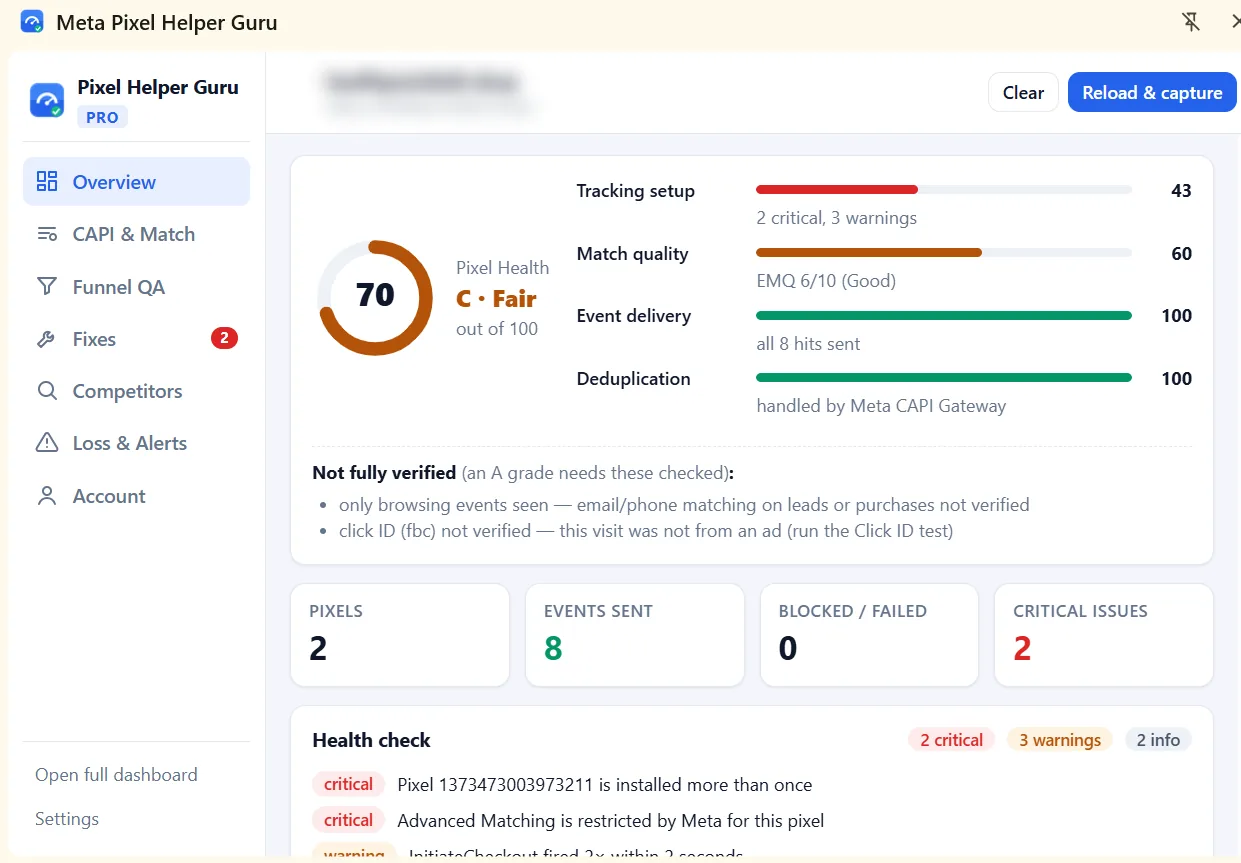
On the Overview tab, look for:
- Pixels: exactly the pixel ID you expect. Two different IDs can be fine (for example an agency pixel). The same ID twice usually means the base code is installed twice, which doubles events.
- Events sent: a
PageViewand, on a product page, aViewContent. - Blocked / failed: should be zero on a clean browser.
Click an event to see its parameters. On ViewContent you want content_ids that match the IDs in your product catalog, content_type, value as a number and a three-letter currency.
4. Walk the funnel
Now behave like a customer. Add the product to the cart, start checkout and, if you can, complete a test order (many stores have a test payment mode or a 100% discount code). Watch the events appear as you go:
| Step | Expected event | Key parameters |
|---|---|---|
| Any page | PageView | none needed |
| Product page | ViewContent | content_ids, value, currency |
| Add to cart | AddToCart | content_ids, value, currency |
| Checkout starts | InitiateCheckout | value, currency, num_items |
| Thank-you page | Purchase | value, currency, content_ids, event_id |
The Funnel QA tab records the whole journey and checks that values stay consistent from step to step. The free plan records up to three pages; Pro records the full funnel and exports it as a report.
5. Read the health score and warnings
Back on the Overview tab, the Pixel Health score grades the site out of 100 across tracking setup, match quality, event delivery and deduplication. Below it, the health check lists what pulled the score down, for example:
- Value is not a clean number:
"$64.00"or"64"sent as text instead of64.00. - No event_id on Purchase: the event can't be deduplicated with a server event.
- Advanced Matching is off: fewer customer details for Meta to match with.
Each warning links to the Fixes tab (Pro), which explains the impact and gives the fix for your setup.
Run this test on your own store now. Steps 1 to 5 work on the free plan.
Add to Chrome, it's free6. Check deduplication and match quality
If the store also sends events from its server (Conversions API), open the CAPI & Match tab (Pro). It shows whether each browser event has a matching server event with the same event_id, and an estimated Event Match Quality for each event with the customer parameters that are missing. Our deduplication guide explains what to look for.
To see what an ad blocker would cost you, run the ad-blocker test on the Loss & Alerts tab. It blocks the pixel on that tab only, so you can see which conversions still reach Meta through the server.
7. Confirm in Meta Events Manager
A pixel helper shows what your browser sent. To confirm what Meta received:
- Open Meta Events Manager, choose your dataset (pixel) and go to Test events.
- Enter your site's URL and open it from there, or use the test event code for server events.
- Repeat the funnel. Each event should appear, and browser and server copies of the same event should show as deduplicated.
If something doesn't show up
No pixel, missing events or everything marked as blocked? Work through our Facebook Pixel not working checklist. For background on how these tools read the pixel, see what a Facebook Pixel Helper is.